CrenoSync

In every plan

The day, at a glance

The portal opens on today: the bookings, the next game, the deposits and the week’s occupancy. And one list of everything that needs someone, with its count in the menu.

Admin portal tabs: HomeTo handle

What you can do

Start the day knowing

Today’s figures

Bookings today and players expected, the next game, today’s deposits and the week’s occupancy, then one click to each tab you have access to.

  • Figures for today and this week
  • Quick access by tab
  • A getting-started list until you are set up
The admin portal’s home with today’s figures Example

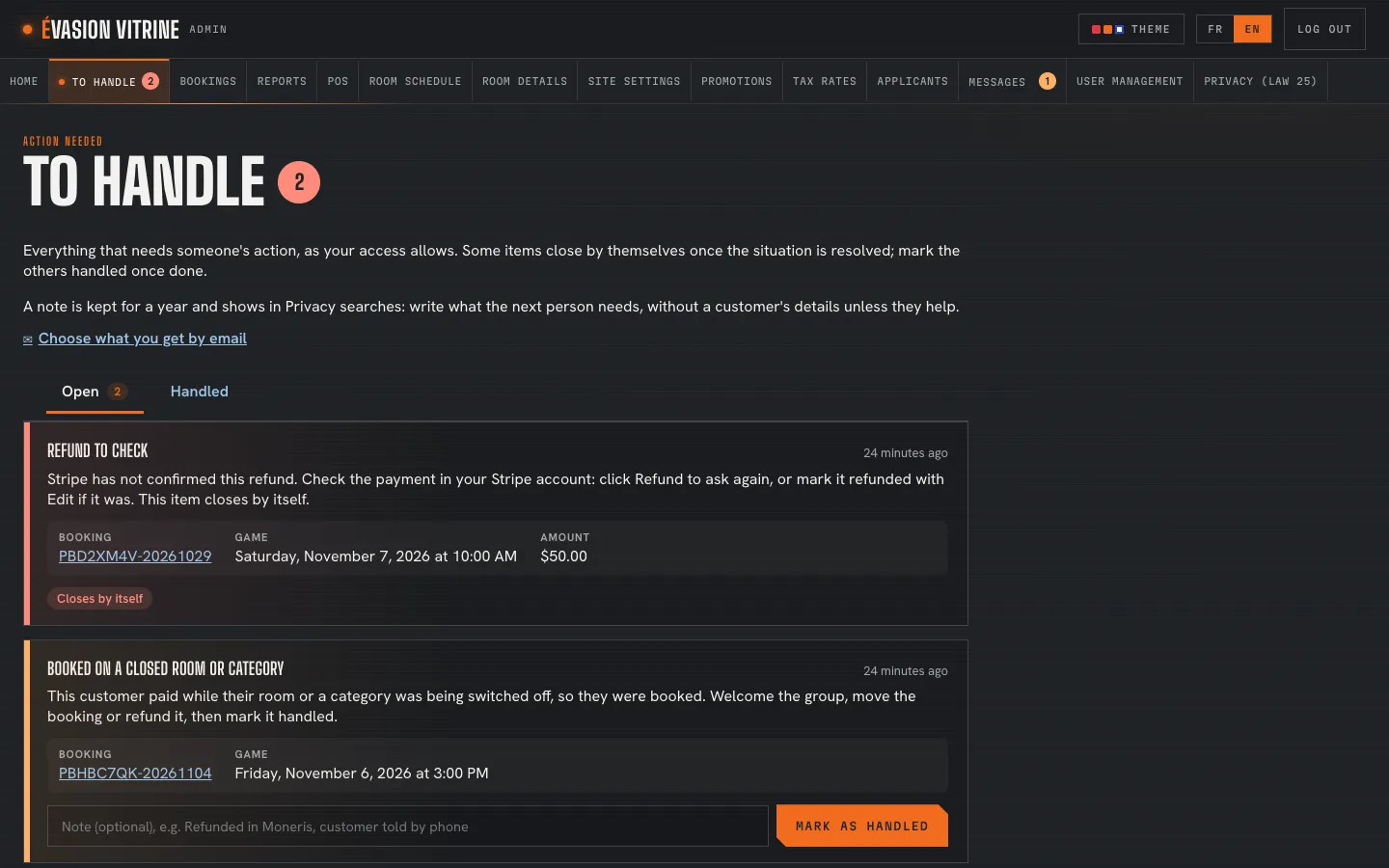
To handle: one list, a count in the menu

A deposit paid without a booking, a refund to check, a booking made on a room just switched off: each item explains what happened and what to do. It closes by itself once fixed, or someone marks it handled, with a note.

  • Open and handled items
  • A note kept one year
  • Only what each person may act on
To handle, two open items with what to do Example

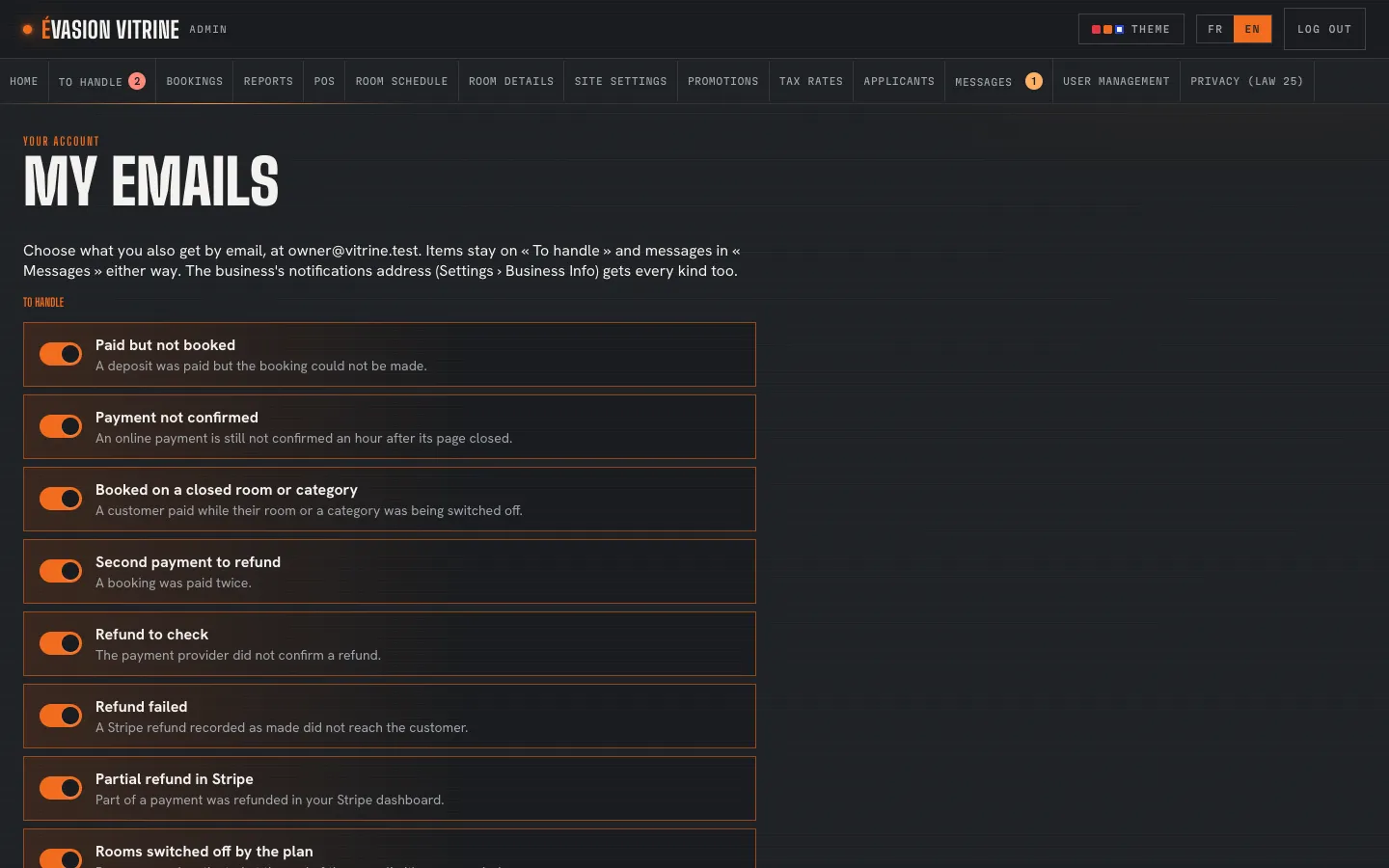
Each person chooses their emails

Every staff member picks which items and messages they also get by email. The items stay in the portal either way.

  • Payments, refunds, settings
  • Contact messages and applications
  • Per person, not per business
My emails: the choices of one staff member Example

An example Example

A refund that needs checking

How an item opens, is handled and closes.

  1. 9:05 AM

    Alex refunds a deposit from a booking; the payment provider has not confirmed it yet.

  2. 10:05 AM

    An item opens in To handle, and the count appears in the menu for those who handle refunds.

  3. 10:20 AM

    Camille checks the provider’s account, finds the refund and marks the item handled with a note.

  4. 10:20 AM

    The count drops; the item stays in the handled list with Camille’s note.

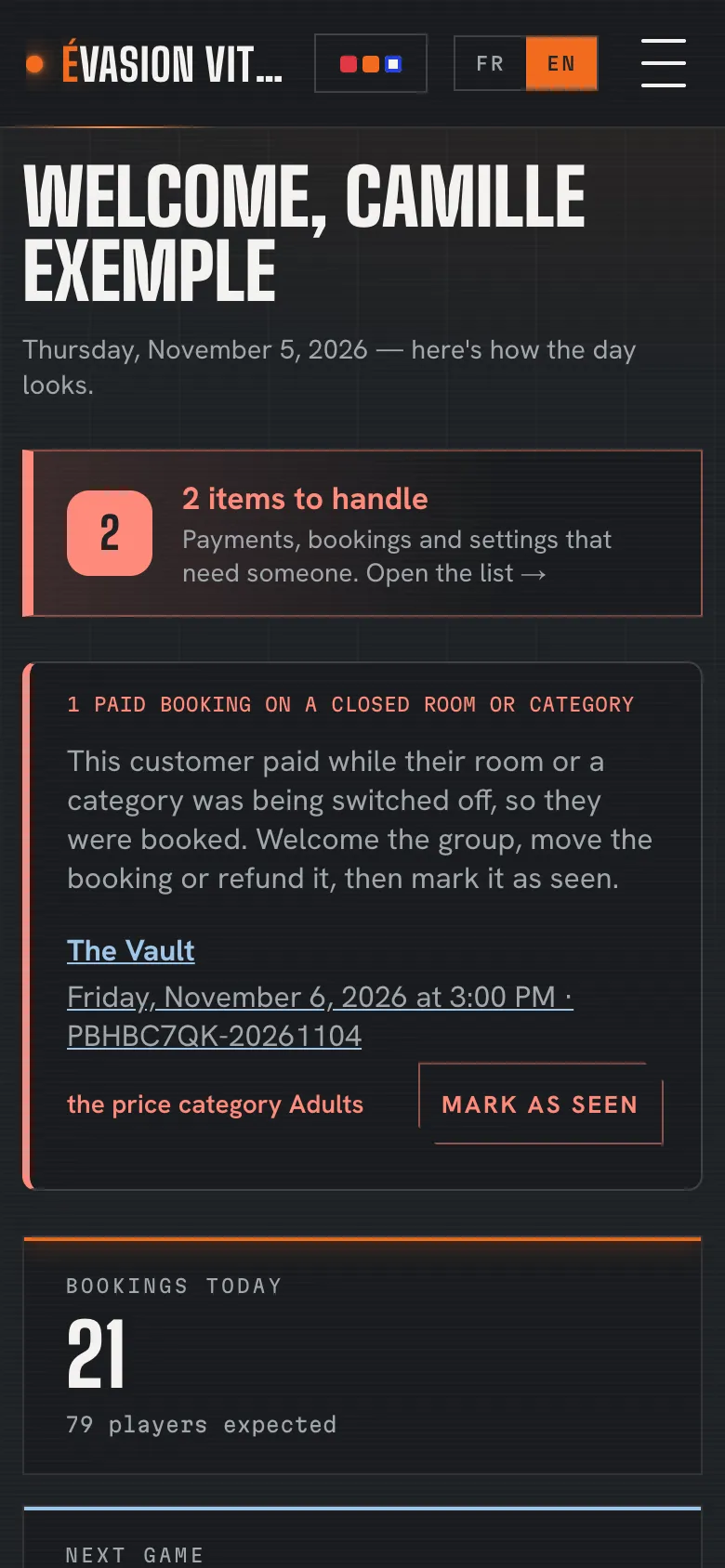
On a phone

The day in your pocket

The home and To handle work on a phone, for a quick look before the first group.

The admin portal’s home on a phone Example

What you set

What you choose

  • Who sees which items
  • Which emails each person gets
  • Notes when marking handled
  • Tabs in the quick access, by access

Questions

Do items close by themselves?

Most do, once the situation is fixed. The others are marked handled by someone, with a note if needed.

Who sees an item?

The staff whose access lets them act on it: refunds for those who may refund, settings for those who manage them.

See it with your rooms

Want the tour with your own business?

We show you the site and the admin portal set up with your rooms, rates and schedules, in French or English.